TheStage AI Platform: Docker Containers
Overview
TheStage AI provides a robust high-level interface for managing Docker containers within a computational cluster. This infrastructure supports both rented and self-hosted servers, enabling efficient management and deployment of machine learning workloads.
Key Features
User-Friendly Management Interface: TheStage AI offers an intuitive, high-level interface for managing containers, streamlining the workflow for researchers.
Controlled Environment: The platform restricts the deployment of arbitrary containers. Instead, users can deploy predefined “persistent” containers optimized for specific tasks.
Predefined Persistent Containers: Users can launch predefined “persistent” containers with PyTorch, optimized for NVIDIA GPUs. These containers provide a stable work environment where users can access the container through CLI to install necessary dependencies and configure the environment as needed.
Seamless File Management: The persistent containers facilitate easy file transfers from a researcher’s local machine. This setup aims to make cloud-based computations as seamless as running code locally.
Long-Running Jobs: Persistent containers are designed to support long-running jobs, which can be managed and executed efficiently through tasks.
Resource Isolation: Container resources do not overlap, allowing servers to be quickly partitioned into multiple containers. This ensures that several team members can work on the same server without competing for resources.
Project-Specific Containers: When creating a project, users can select containers with pre-installed JupyterLab and TensorBoard. These containers provide direct links to access JupyterLab and TensorBoard, facilitating quick prototyping and hypothesis testing.
Qlip Availability: TheStage AI toolkit specifically designed to optimize and streamline neural networks for inference tasks is available in the containers.
Benefits
Consistency and Reproducibility: Containers encapsulate the entire runtime environment, including the application, dependencies, libraries, and binaries. This ensures consistent operation across various platforms and solves the “it works on my machine” issue.
Simplified Management: Containers are easily deployable across multiple environments, facilitating the straightforward scaling of machine learning models. They can be orchestrated using tools that automate the deployment, scaling, and management of containerized applications.
Creating Containers
There are two ways to create a container:
Standalone Container: Create a container independently.
Within a Project: Create a container as part of a project. When creating a container within a project, you can choose one specifically designed for rapid prototyping, which includes pre-installed JupyterLab and TensorBoard.
To create a container outside of a project:
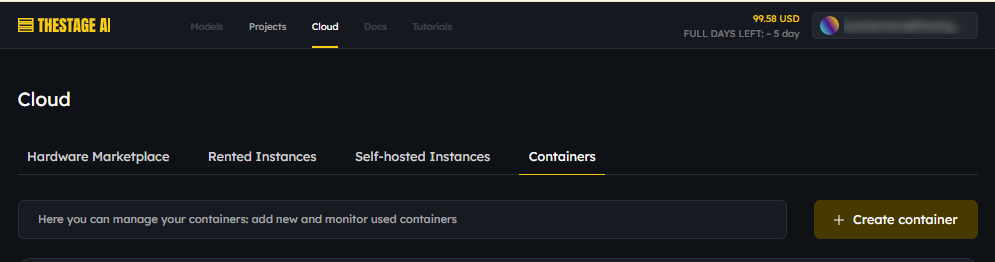
Login to your account, navigate to the Containers section and press the “Create container” button:
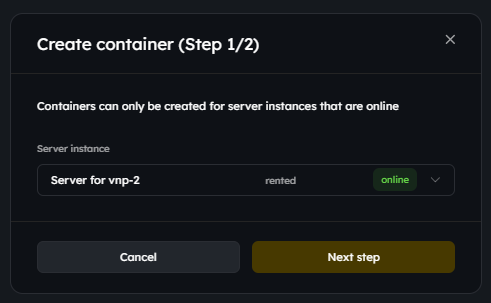
Select a server instance (rented or self-hosted), press the “Next step” button:
Fill our the required fields and press the “Create container” button:
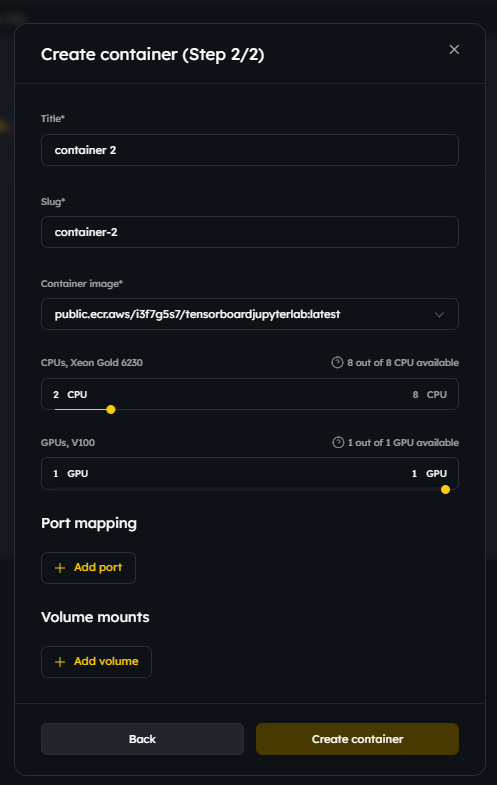
Once the container status changes to running, the container is ready to be used:
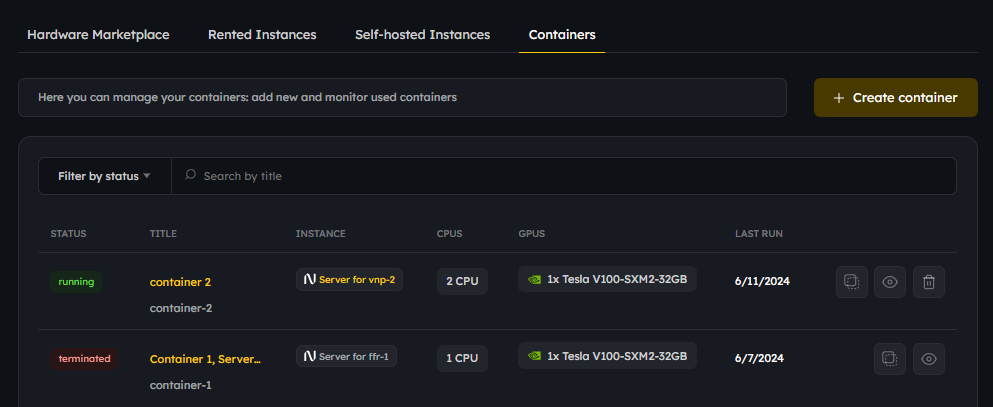
To create a container outside as a part of a project:
Login to your account, navigate to the Project section:
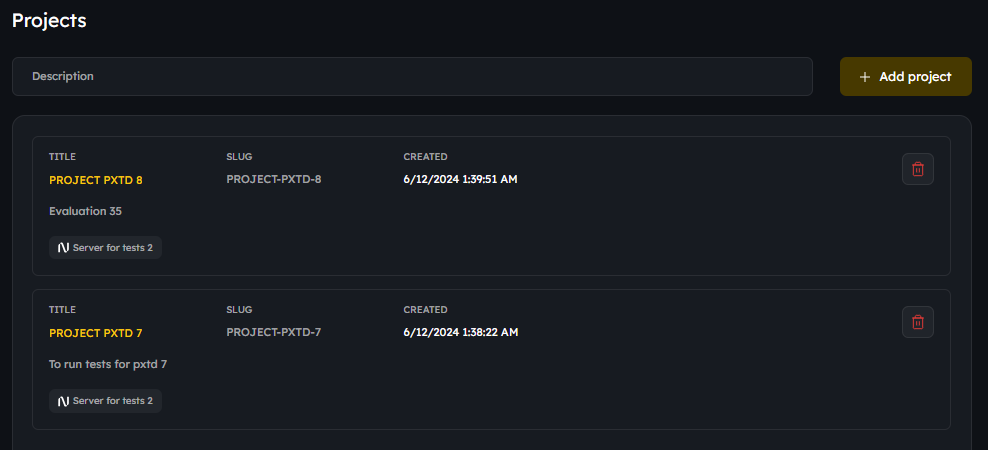
Click the project name you are creating a container for.
Press the “Create container” button:
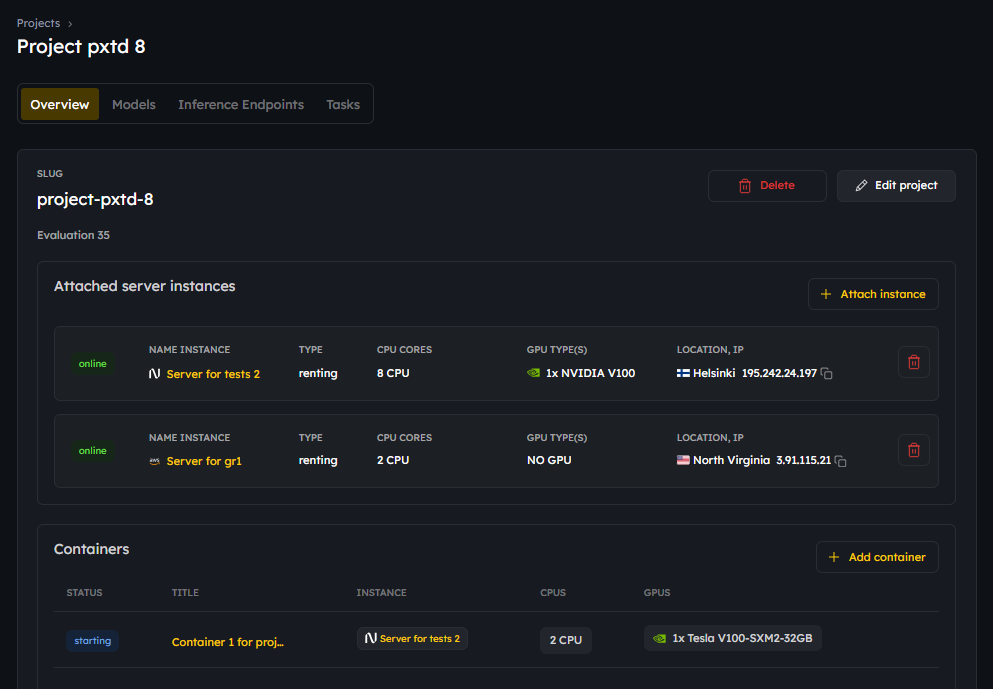
Select a server instance (rented or self-hosted) attached to the project, press the “Next step” button.
Fill our the required fields and press the “Create container” button.
Statuses
Possible container statuses and their meanings:
starting: The container is in the process of being created or started.
creation failed: The process of creating the container has failed.
running: The container is currently running and not engaged in any tasks.
stopping: The container is in the process of stopping.
stopped: The container has been stopped.
exited: The container has exited with an error code, such as 128 or 255.
unresponsive: The container is in a non-working state due to issues at the driver or storage level, and cannot be properly cleaned up or fully removed.
terminating: The container is in the process of being removed.
terminated: The container has been deleted.
Managing Containers
Containers can be managed (stopping, starting, restarting, deleting, etc.) using TheStage AI Web Interface. Some functions for managing containers are also available using TheStage AI CLI.
To manage your containers using TheStage AI Web Interface:
Login to your account, navigate to the Container section:
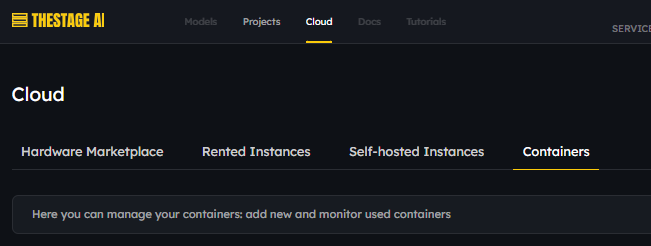
Click on the container name or the eye symbol next to the container:
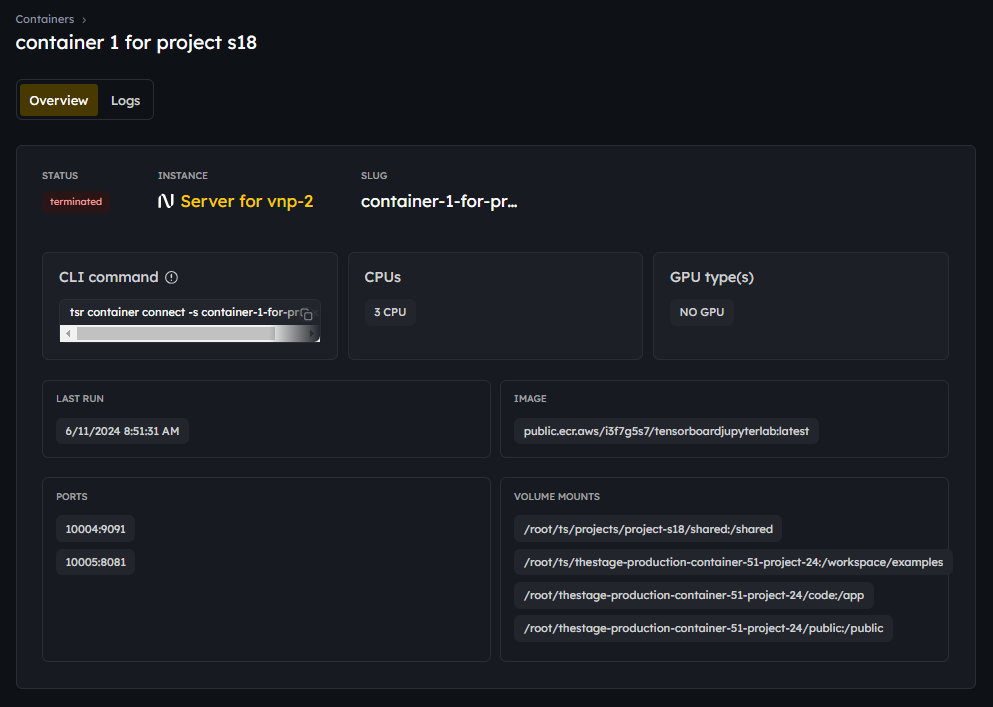
Accessing Container’s Logs
TheStage AI Web Interface provides access to container logs as well as logs for the applications and tasks running within the containers.
To access logs:
Login to your account, navigate to the Container section:
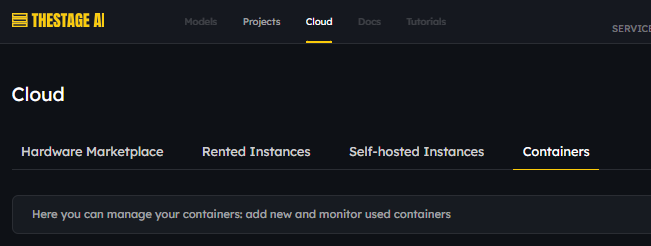
Click on the container name or the eye symbol next to the container and select the “Logs” tab:
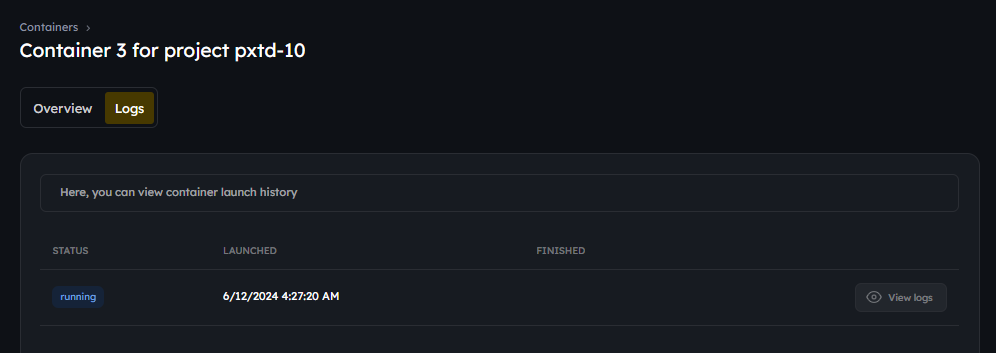
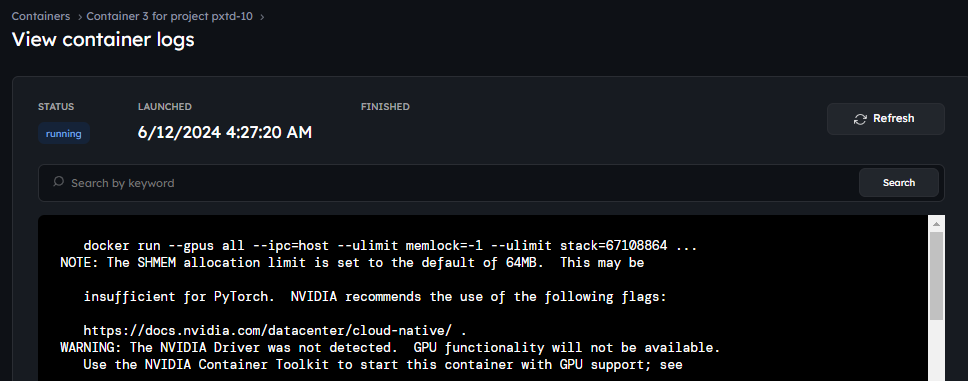
Press the “View logs” button next to the container’ launch you are interested in: