TheStage AI Platform: Rented Instances
Cloud Providers
As a unified access point, TheStage AI platform bridges the gap between researchers and major cloud providers, offering access to high-quality hardware:
Comparison & Selection: Researchers can compare technical specifications and the latest prices from various providers, making informed decisions based on their requirements.
Quick Access: Through TheStage AI, researchers can rent and interact with the equipment without delays or bureaucratic hurdles.
Currently, TheStage AI supports the following cloud providers:
Requirements
Account Balance: Ensure that your account balance is sufficient to cover all rented server instances with the statuses “creating”, “stopped”, or “online” for at least one hour.
Instance Limit: Ensure that the number of server instances for your account with the statuses “creating”, “stopped”, or “online” does not exceed five.
SSH Keys to Access Rented Instances
For each account, TheStage AI platform maintains a list of SSH keys that can be used to access server instances rented though the platform and Docker containers running on the rented server instances via SSH. 
Before renting a server instance, please ensure you have at least one valid SSH key in your TheStage AI SSH key list. When you rent a server instance, you select an SSH key from the SSH key list stored in your TheStage account.
SSH keys can be managed in the Profile > SSH keys section. For more information, please refer to TheStage AI Platform: SSH Keys and API Tokens
Renting Server Instances
To rent a server instance:
Login to your account and navigate to the Hardware Marketplace section:
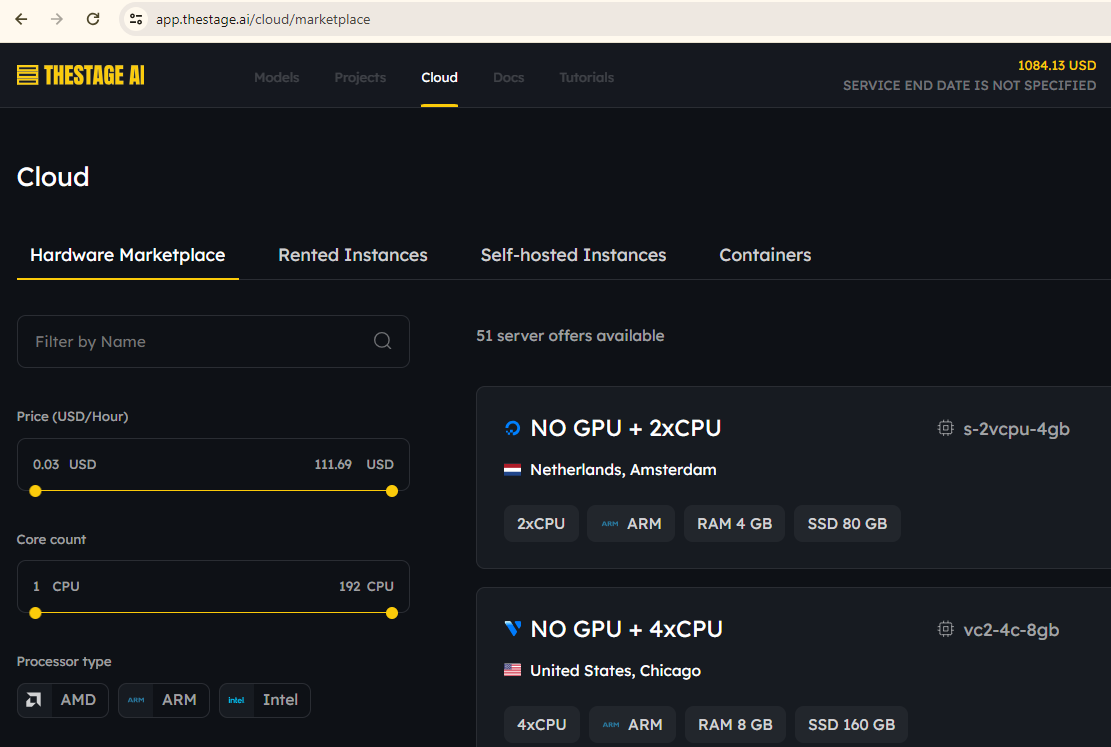
Specify your requirements on the left to filter down offers:
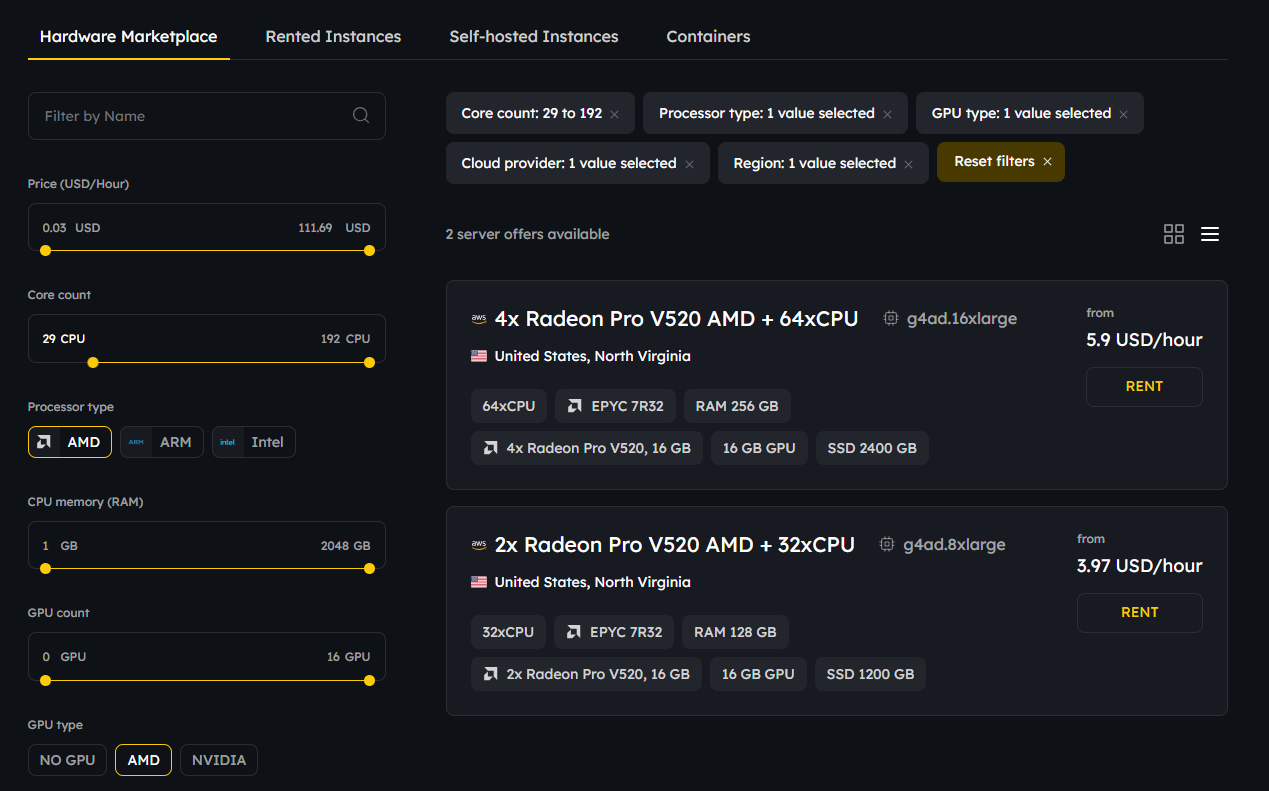
Compare offers and press the “Rent” button next to the selected one.
Fill our the required fields:
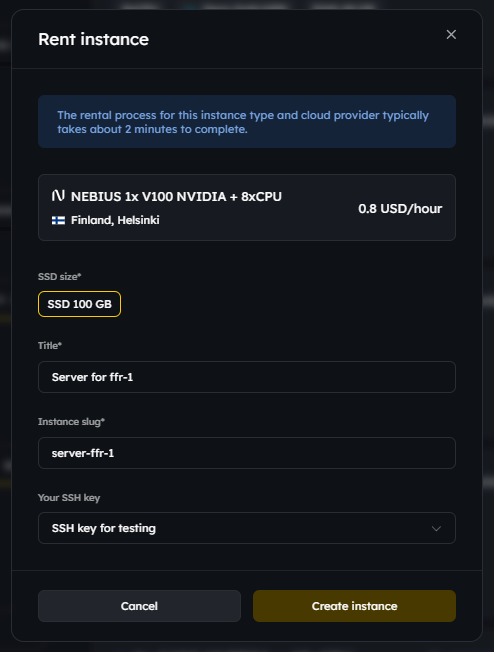
Press the “Create instance” button:
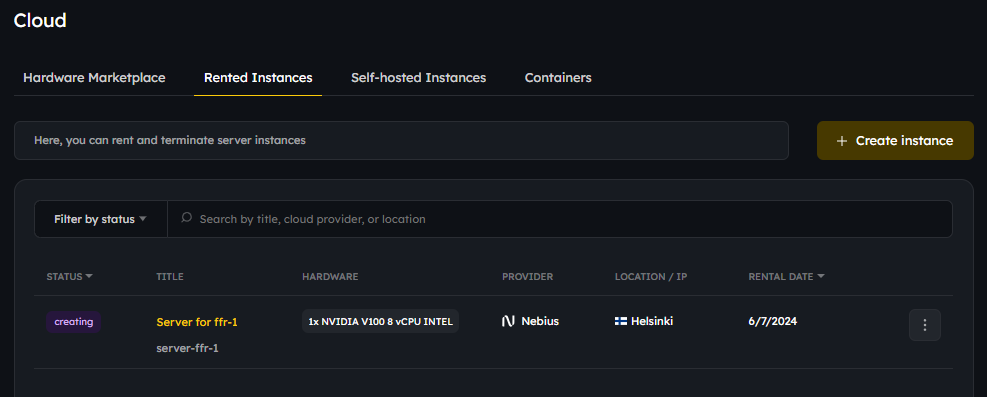
Once the server status becomes “online”, the server is ready for use:
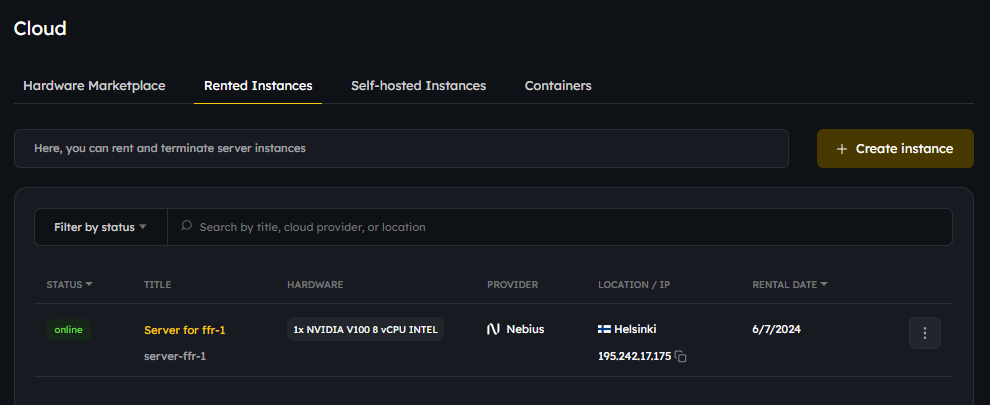
OS and Preinstalled Software
Rented server instances come with Ubuntu 22.04, Docker, and TheStage AI worker daemon software preinstalled.
TheStage AI worker daemon is an agent that runs on each rented or connected server instance. It is responsible for executing researchers’ requests, managing outputs, and reporting the health of the server instance. The worker daemon also orchestrates the operation of containers and tasks, ensuring smooth and efficient execution.
Important: Please ensure not to delete Docker, TheStage AI worker daemon, or Git, as TheStage AI platform will not be able to operate the rented server without them.
Statuses
Possible statuses of server instances and their meanings:
creating: The server instance is in the process of creation and renting.
rental error: There was an error in renting the server; please try again.
stopped: The server instance has been rented, but the power is off.
online: The server instance has been rented, and the power is on.
terminating: The rental of the server instance is in the process of termination.
terminated: The rental of the server instance has been terminated.
Researchers are only charged for server instances that are in the “stopped” or “online” status. Charges apply when the account status is “active”. The account status changes from “active” to “suspended” if the account balance reaches zero.
Managing Rented Instances
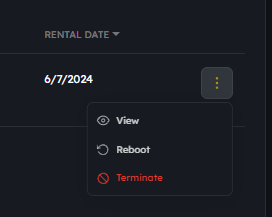
Rented server instances can be managed (“stopping”, “starting”, “restarting”, “terminating rental”) using TheStage AI Web Interface.
To manage your rented server instances:
Login to your account and navigate to the Rented instances section:
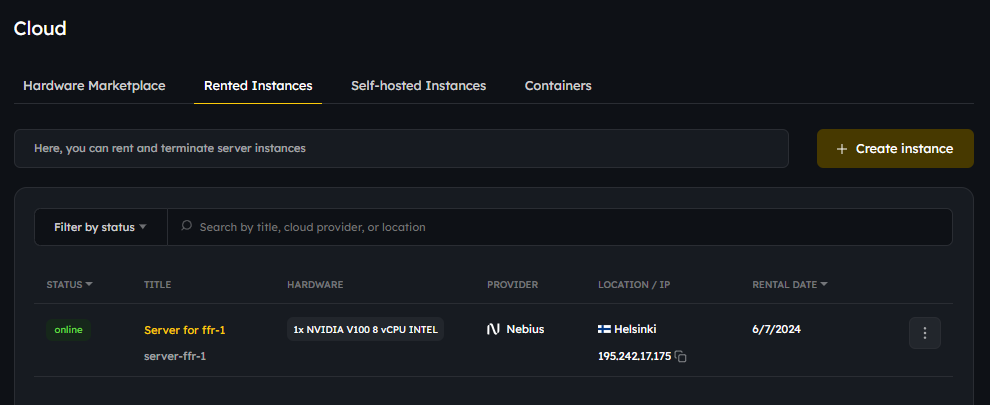
Click the three vertical dots next a rented server instance:
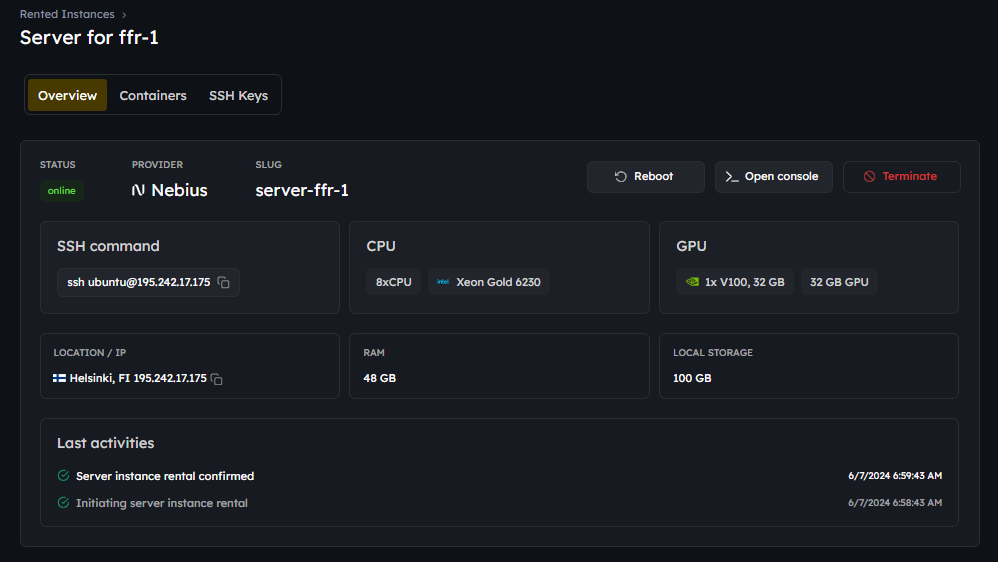
By pressing “View” you will get to the section where you can manage the server instance: create containers, change SSH keys or add new ones, view activates performed on the server instance and more:
Billing
For more information about how you are billed for the rented servers, please refer to the TheStage AI Platform: Account and Billing article, specifically the “Payments for Rented Server Instances” section.
Please familiarize yourself with what happens when your account balance becomes zero by referring to the “Zero Account Balance Notifications and Actions” section of the same article.