TheStage AI Platform: Projects
Overview
Research and development in AI rarely consist of a single training process run. Instead, an the process is a comprehensive and iterative process that involves multiple stages of development, evaluation, and refinement. To manage these complexities, TheStage AI offers the use of projects.
The primary purpose of projects is to:
Divide computational resources between teams or different research directions.
Organize work within each project to ensure efficient management and execution.
Project Workflow
Step 1: Setting up the Infrastructure (via TheStage AI Web Interface)
Rent Servers or Connect Self-hosted Servers: Rent server instances from cloud providers or connect self-hosted servers to your TheStage AI account. Please refer to TheStage AI Platform: Rented Instances and TheStage AI Platform: Self-hosted Instances for more information.
Create a Project: Create a project on one or multiple servers (covered in this document). When a project is created, a dedicated GitHub repository is automatically generated for the project. 
Set Up Containers: Create containers specific to the project to run tasks within the project. Please refer to TheStage AI Platform: Docker Containers for more information.
Step 2: Managing the Project with TheStage CLI
Initialize or Clone the Project: Use TheStage CLI to initialize or clone the project repository locally. 
Create and Run Tasks: Create and run tasks within the project on the available containers. If there are any code changes, they will be committed to the project’s GitHub repository before task execution.
To learn more about using TheStage CLI, please refer to TheStage AI: CLI Reference
Creating Projects
To create a project:
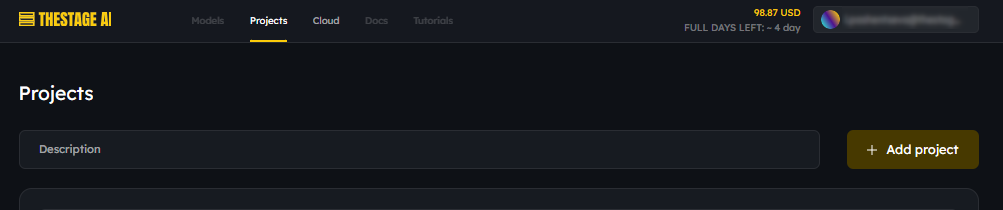
Login to your TheStage AI account, navigate to the Projects section and press the “Add project” button:
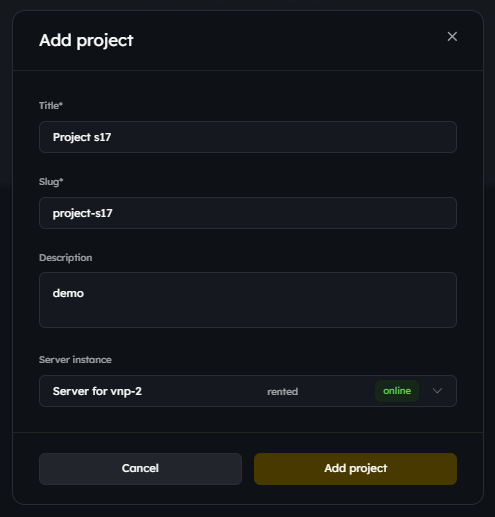
Fill our the required fields, select the default server instance for this project and press the “Add project” button:
Managing Projects
To manage a project:
Login to your account, navigate to the Projects section:
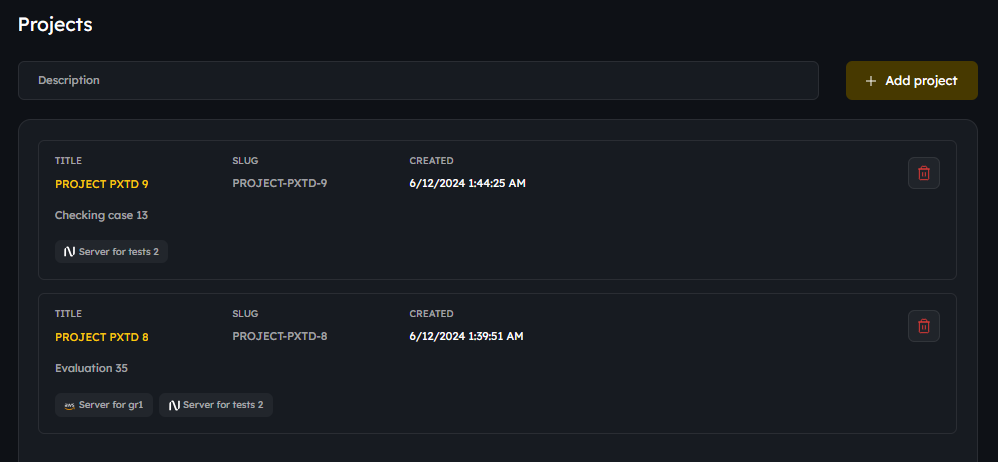
Click the project name to view or edit:
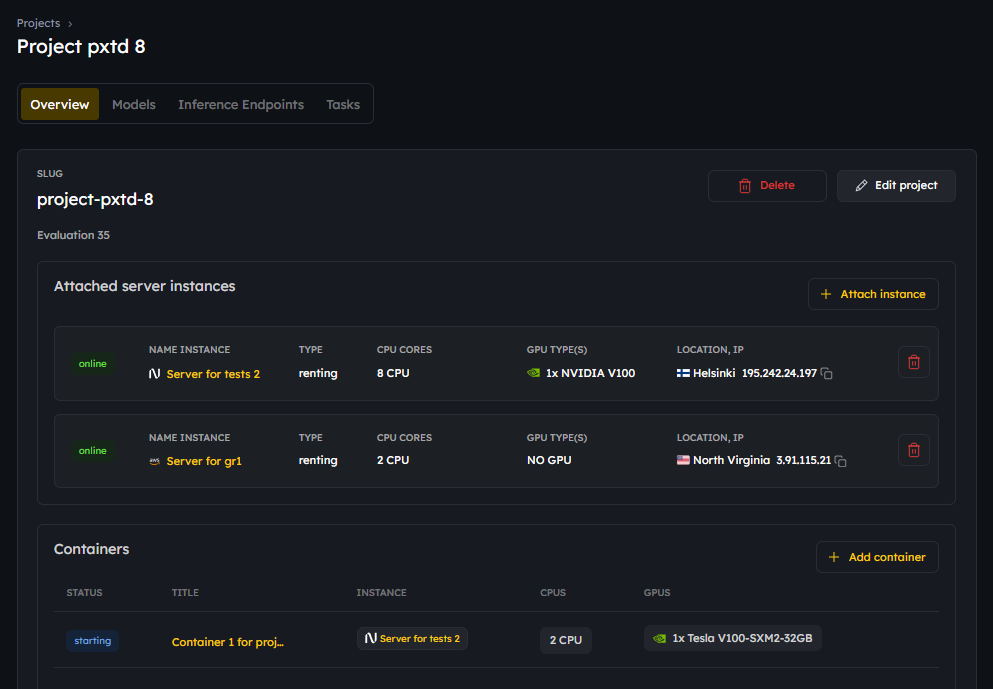
Important: When you delete a project you delete all containers, tasks and log information associated this project